



Try automatic setup first, then use manual IMAP settings if the app cannot detect your account.
Add your email account #
- Open Gmail → profile icon → Add another account.
- Select Other.
- Enter your full company email address and select Next.
- Enter your password and allow automatic configuration to run.
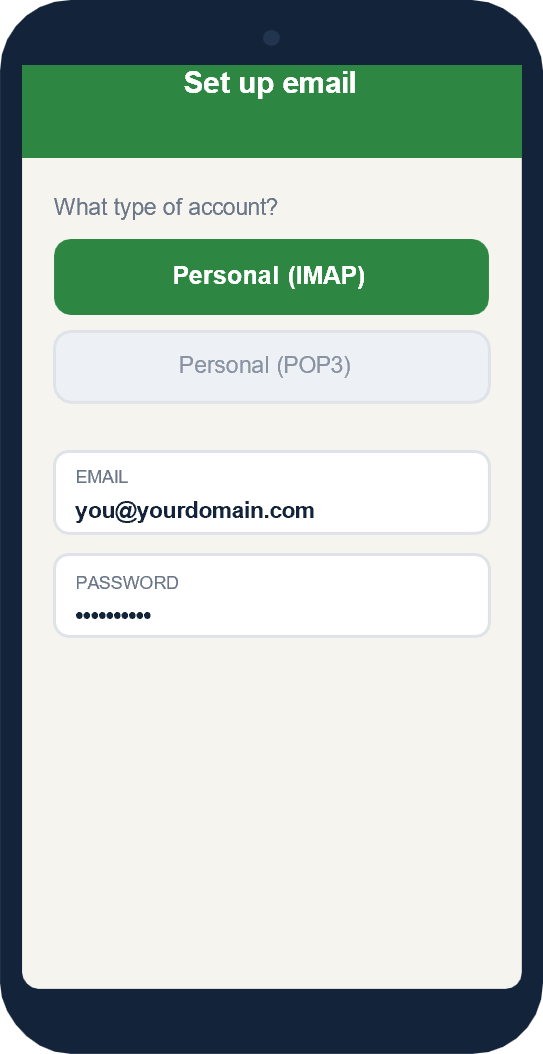
- If automatic configuration fails, choose Personal (IMAP) and continue manually.
Incoming server (IMAP) #
- Server:
imap.emailarray.com - Port: 993
- Security: SSL/TLS
- Username: full email address
- Password: mailbox password
Outgoing server (SMTP) #
- Server:
smtp.emailarray.com - Port: 465
- Security: SSL/TLS
- Require sign-in: On
- Username: full email address
- Password: mailbox password
Finish and test #
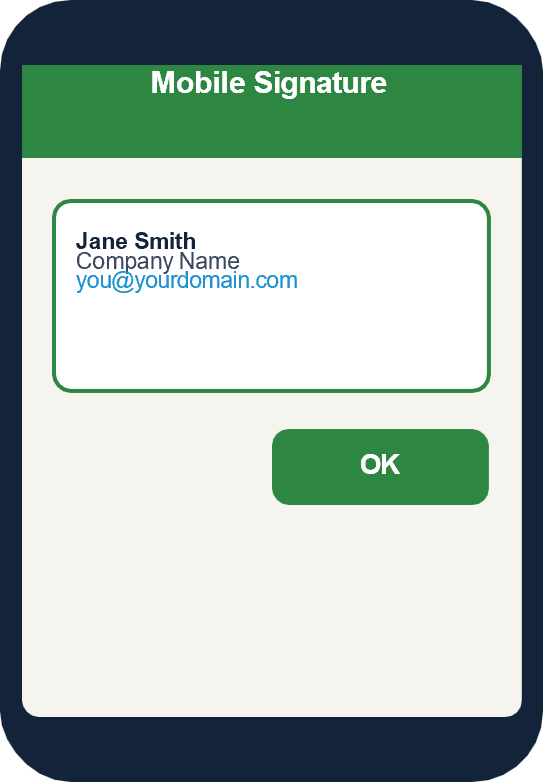
Choose your sender display name. In Gmail → Menu → Settings → your company account → Mobile Signature, enter your company signature.
Send yourself a test message from another account and reply to confirm outgoing mail works. If port 465 is blocked by your network, use port 587 with STARTTLS instead.