




GridWrite gives you a visual workspace for building and editing website pages.
Editor overview #
The main editor is divided into the widget panel, page canvas, responsive controls, structure tools, preview controls, and publishing tools.
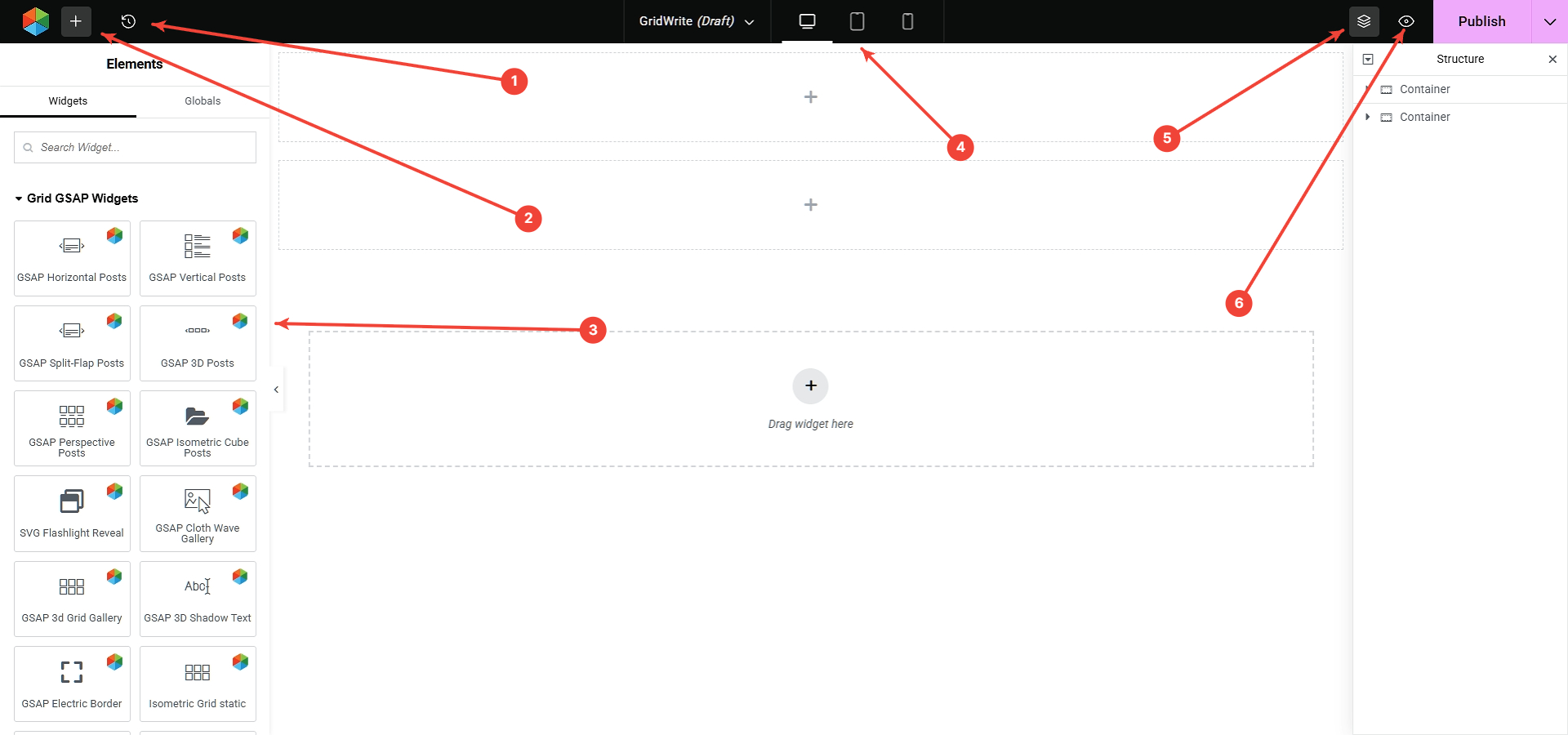
1. History #
Use History to review recent editing actions and move backward through changes when needed.
2. Add content #
Use the Add control to begin adding new content and elements to the page.
3. Widget library #
The widget library contains the available GridWrite elements you can drag into the page. Widgets can contain text, images, icons, buttons, lists, media, and other content controls.
4. Responsive viewport controls #
Switch between desktop, tablet, and mobile views to check how the page responds at different screen sizes.
5. Structure #
The Structure panel provides a hierarchical view of the page and makes it easier to select containers and widgets in complex layouts.
6. Preview #
Use Preview to view the page without the editing interface.
Publishing changes #
Use Publish for a new page or Update for an existing page after you have reviewed your changes.
Next step #
Once you are comfortable with the editor layout, learn how GridWrite AI works directly inside individual widget controls.


