




A single GridWrite widget can contain several separate AI-enabled controls. Each AI action works on the specific field beside it.
Example: one widget, multiple AI actions #
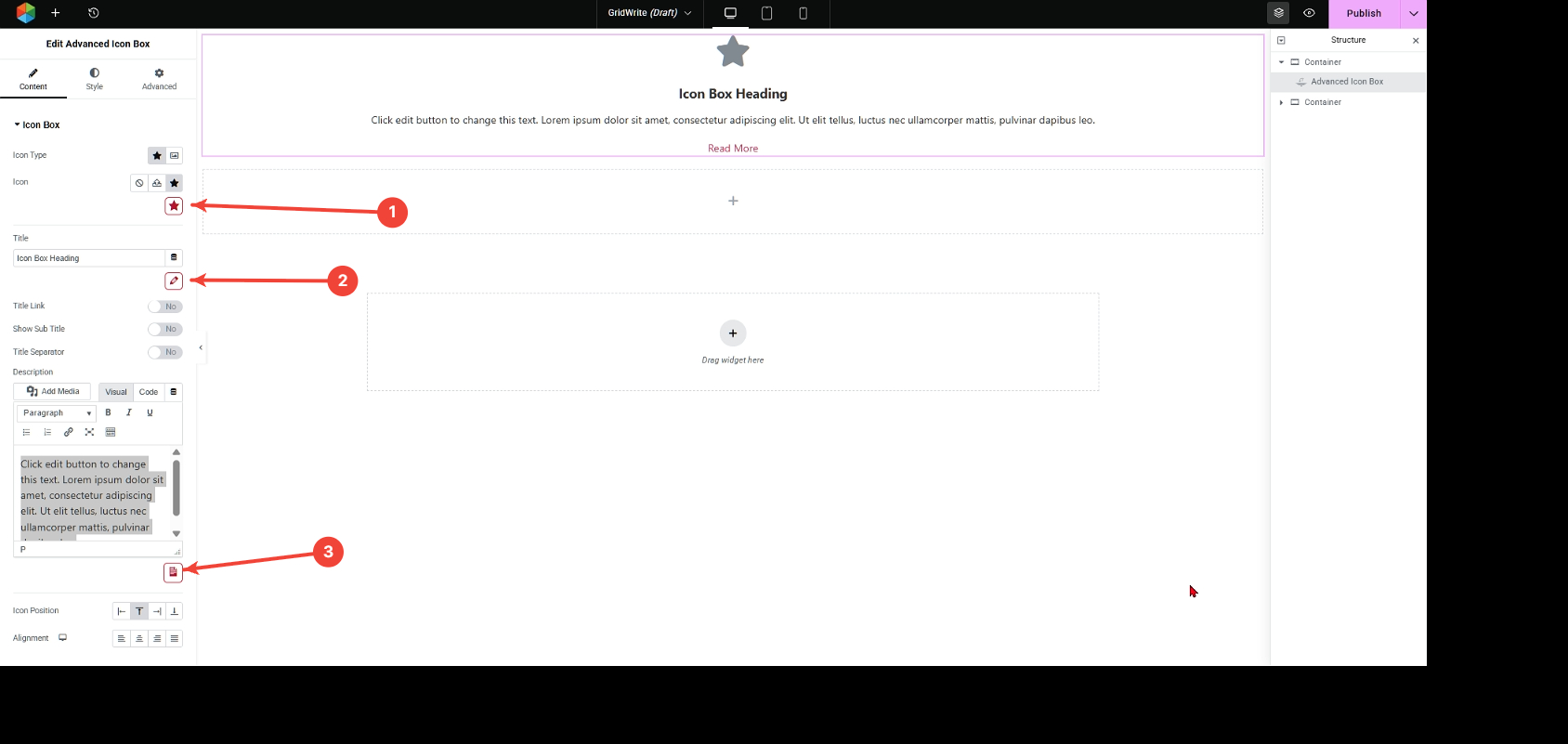
In a supported widget, you may see separate GridWrite AI actions beside controls such as:
- icon
- title or heading
- description or content
- image
- button text
- other supported fields
How to use them #
1. Choose the field you want to change #
Open the widget settings and locate the content control you want to work on.
2. Select its GridWrite AI action #
Use the AI icon beside that specific field. GridWrite AI opens for that control rather than changing the entire widget.
3. Generate the content #
Enter the prompt and generate the result.
4. Review the page #
The generated value is applied to that control and updates in the editor.
Tip #
Treat each AI action as a focused assistant for one part of the widget. Generate the title, description, image, icon, or button text separately when you want more control over the final result.


