



Try automatic setup first. Your mailbox supports automatic discovery of server settings.
Automatic setup #
- Open the iPhone or iPad Settings app, then its Mail account settings → Add Account (menu placement varies by iOS version).
- Choose Other → Add Mail Account.
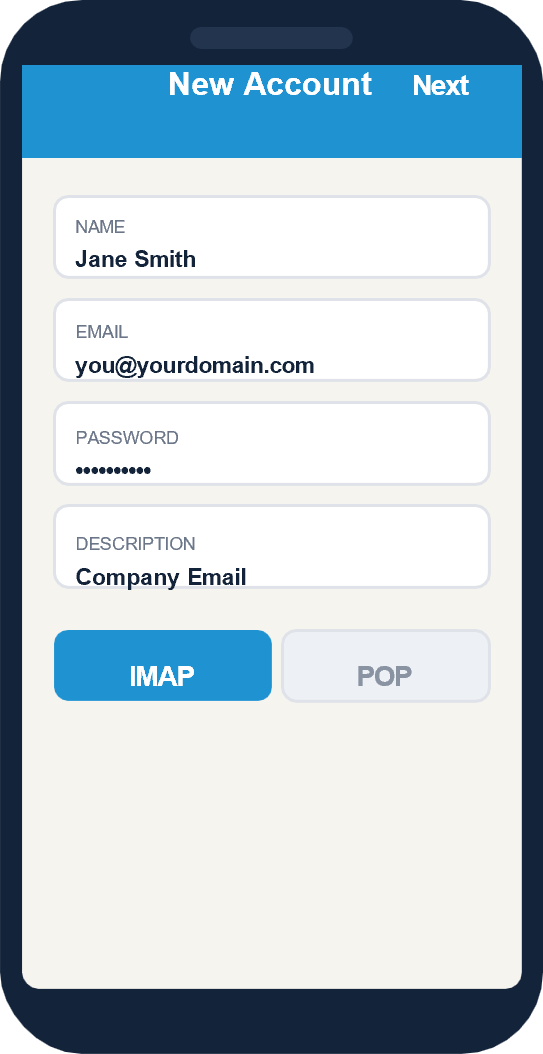
- Enter your name, full company email address and mailbox password.
- Tap Next. If the account is verified automatically, tap Save.
Manual IMAP setup #
If automatic setup fails, choose IMAP, not POP, and enter:
| Field | Incoming mail | Outgoing mail |
|---|---|---|
| Host | imap.emailarray.com |
smtp.emailarray.com |
| Username | Full email address | Full email address |
| Password | Mailbox password | Mailbox password |
| Port | 993 | 465 |
| Security | SSL/TLS | SSL/TLS |
Tap Next, wait for verification, and Save. If verification fails, check the incoming port and SSL settings under the account’s advanced options, and the outgoing SMTP port and SSL settings.
Set your signature #
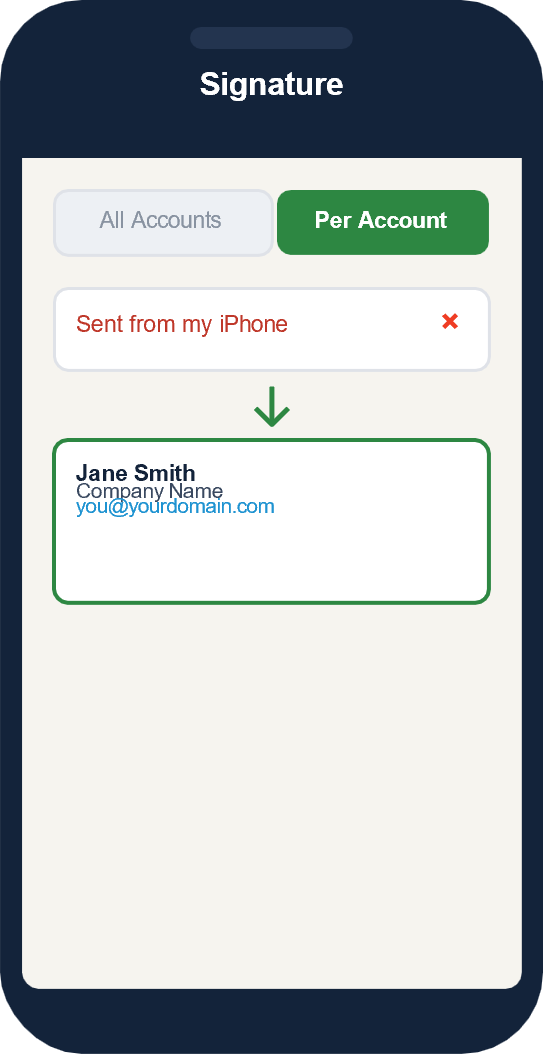
Open the Mail Signature settings, choose Per Account, and replace the default iPhone signature with your company signature.